CPU + Memory
A pulse on
your Mac.
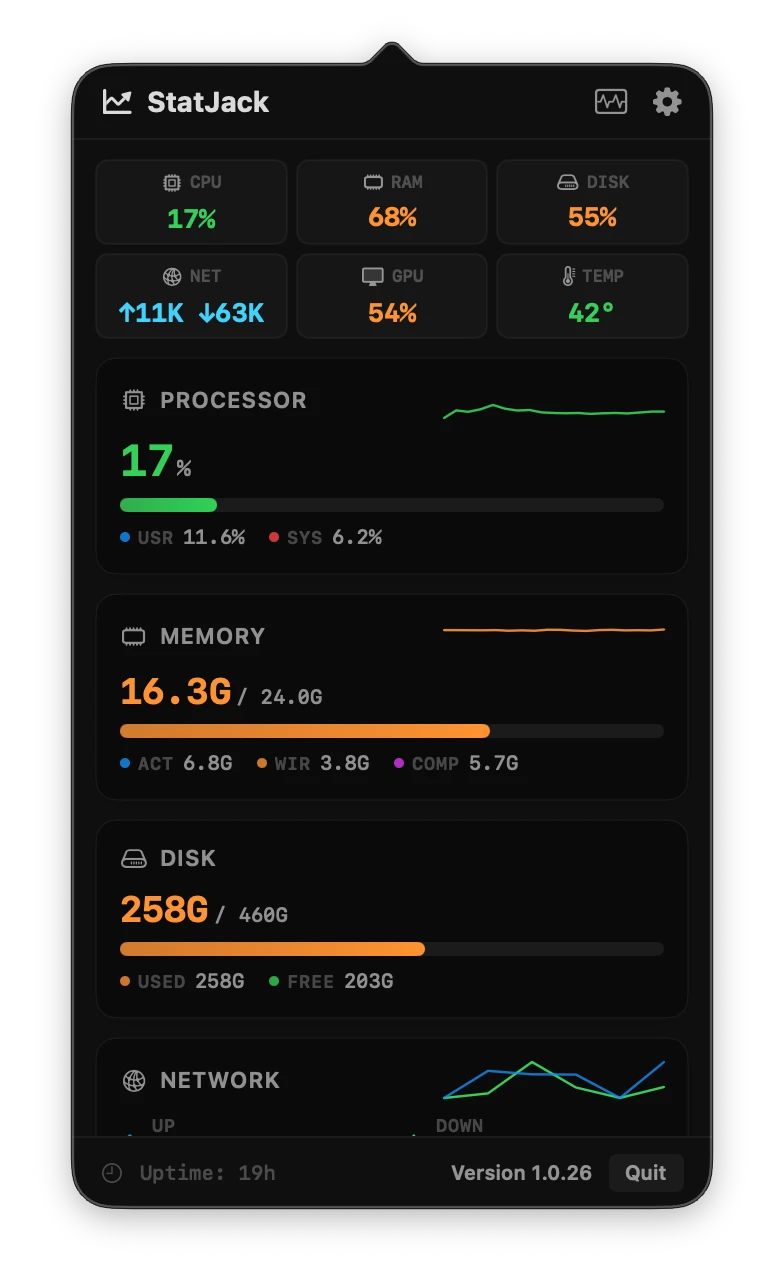
See processor load and memory usage, with the details and trends close by.
A native Mac system monitor
CPU, memory, disk and network. Keep the numbers you care about in your menu bar, and open one clear panel when you want the bigger picture.
Apple Silicon · macOS 14+
A little more insight.
CPU + Memory
See processor load and memory usage, with the details and trends close by.
Disk space
Keep an eye on used and available space on your Mac’s startup volume.
Network activity
Follow live upload and download speeds, plus the totals for your session.
GPU + Thermal state
See GPU activity where available, and keep track of your Mac’s thermal state.
Made for your menu bar
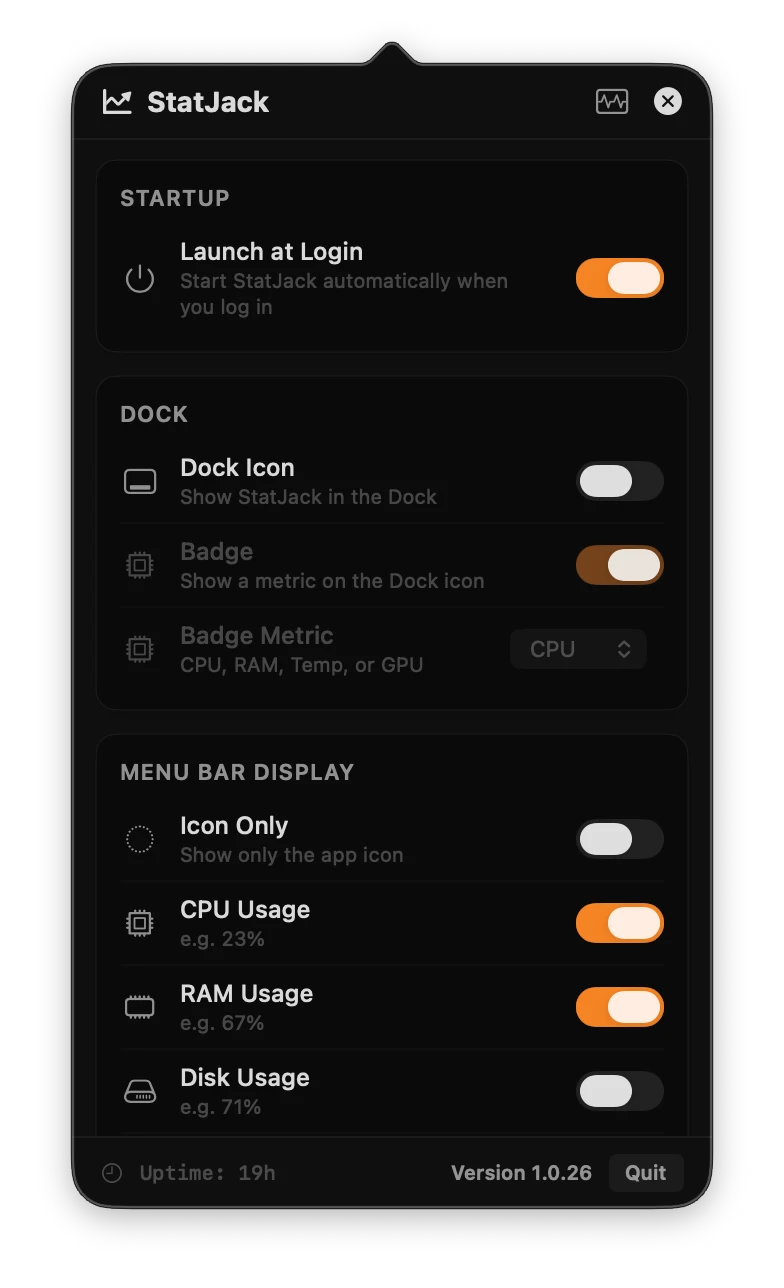
Pick your metrics. Set CPU and memory thresholds. Get a notification when they’re crossed.
Make room for what matters.
Choose the metrics that stay in view. Keep things minimal with a single icon, add a Dock badge, or set CPU and memory alerts for the moments that need your attention.
Up and running
Download the latest DMG, open it and drag StatJack into Applications.
Launch StatJack and click its menu bar icon. Open the panel for your system overview and usage trends.
Choose your metrics in Settings. Add CPU or RAM alerts and enable Launch at Login if you’d like.
A few useful answers
The current download is for Apple Silicon Macs running macOS 14 or later. GPU usage is shown when supported by your Mac’s hardware; thermal state reports macOS thermal pressure.
Yes. Choose CPU, RAM, disk, network, GPU or thermal state in Settings, or use Icon Only for a quieter menu bar. You can also enable a Dock icon and choose a badge metric.
Enable CPU or RAM alerts in Settings and choose your percentage threshold. Allow macOS notifications for StatJack to receive a notification when that metric crosses your threshold.
The current version reports macOS thermal state: Normal, Elevated, High or Critical. It describes thermal pressure, rather than a CPU temperature reading in degrees.

Apple Silicon · macOS 14+ · Latest stable release